CSS Positioning
CSS Position Types: 1.Relative. 2.Absolute. 3.Fixed. 4.Sticky CSS Position Keywords: To modify the position you’ll need to apply the below properties 1.Top 2.Bottom. 3.Left 4.Right These top, left right and left offsets push the tag from where it is specified. For ex: button {position:relative; top:20px;} this will shift the button 20px away from the top. 1. Relative: Relative position changes the position of the element relative to its normal position.
(https://cdn.hashnode.com/res/hashnode/image/upload/v1658431385783/xUOVIeBI1.jpg
From the above image, as we can see there are two boxes placed one below the other, noo if I want to move box2 slightly down from box1 then I can apply the position:relative property and move it down usig top offset. .box2{ position:relative, top:20px: } See the image below for the result
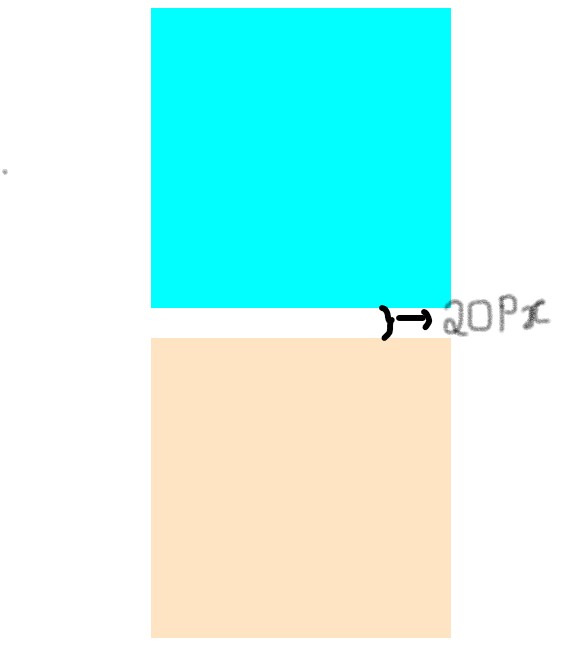
After applying the top:20px offset to box2, it moves 20px down from its original position.
2.Absolute: This is a very powerful type of positioning that allows you to literally place any page element exactly where you want it. You use the positioning attributes top, left, bottom, and right to set the location. Remember that these values will be relative to the next parent element with relative (or absolute) positioning. If there is no such parent, it will default all the way back up to the element itself meaning it will be placed relative to the page itself.
<body>
    <div class="box1">
        <div class="box2">

        </div>

    </div>

</body>
.box1{
    background-color: aqua;
    width:200px;
    height:200px;
    margin: 10px auto;
}
.box2{
    background-color: bisque;
    width:100px;
    height:100px;
    margin: auto;
}
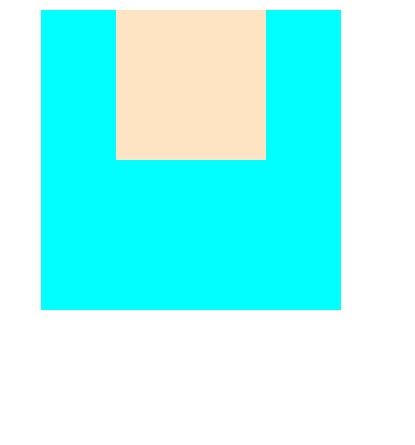
Now upon applying position: absolute to the box2 with left:10px, the box2 with be position/ move from left by 10px relative to the page itself(all the way back up to the html element. See the images below for the result.
.box1{
    background-color: aqua;
    width:200px;
    height:200px;
    margin: 10px auto;


}
.box2{
    background-color: bisque;
    width:100px;
    height:100px;
    margin: auto;
    position: absolute;
    left:10px;

}
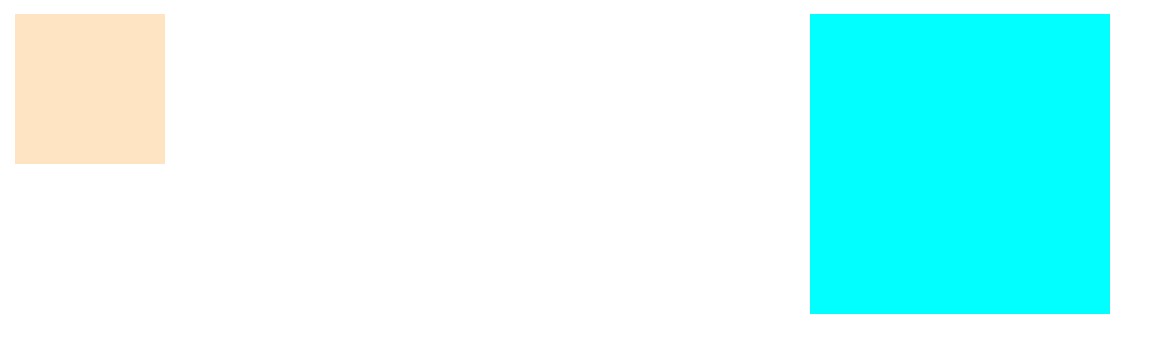
Now upon setting position:relative for box1, the box2 will move from left by 10-px relative to the postion of the parent which is box1. See the image below for result.
.box2{
    background-color: bisque;
    width:100px;
    height:100px;
    margin: auto;
    position: absolute;
    left:10px;
}
.box1{
    background-color: aqua;
    width:200px;
    height:200px;
    margin: 10px auto;
    position: relative;
}
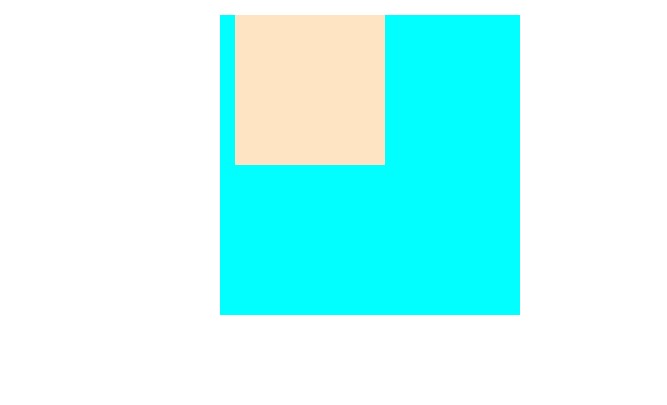
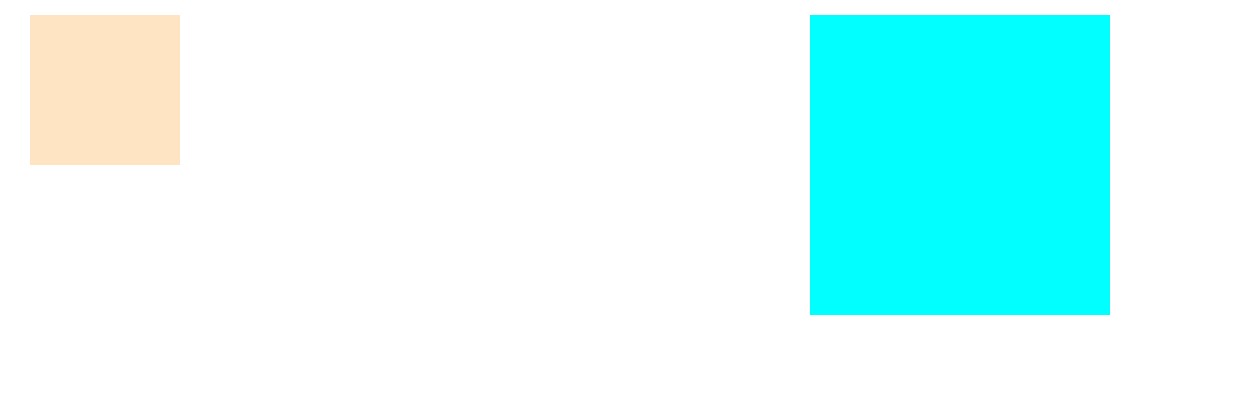
3.Fixed: A fixed position element is positioned relative to the viewport, or the browser window itself. I works in a similar way as absolute positioning works except the parent element is always the viewport. Example.
```<div class="box1">
        <div class="box2">

        </div>

    </div>
    background-color: aqua;
    width:200px;
    height:200px;
    margin: 10px auto;

}
.box2{
    background-color: bisque;
    width:100px;
    height:100px;
    margin: auto;
    position:fixed;
    left:20px;
}
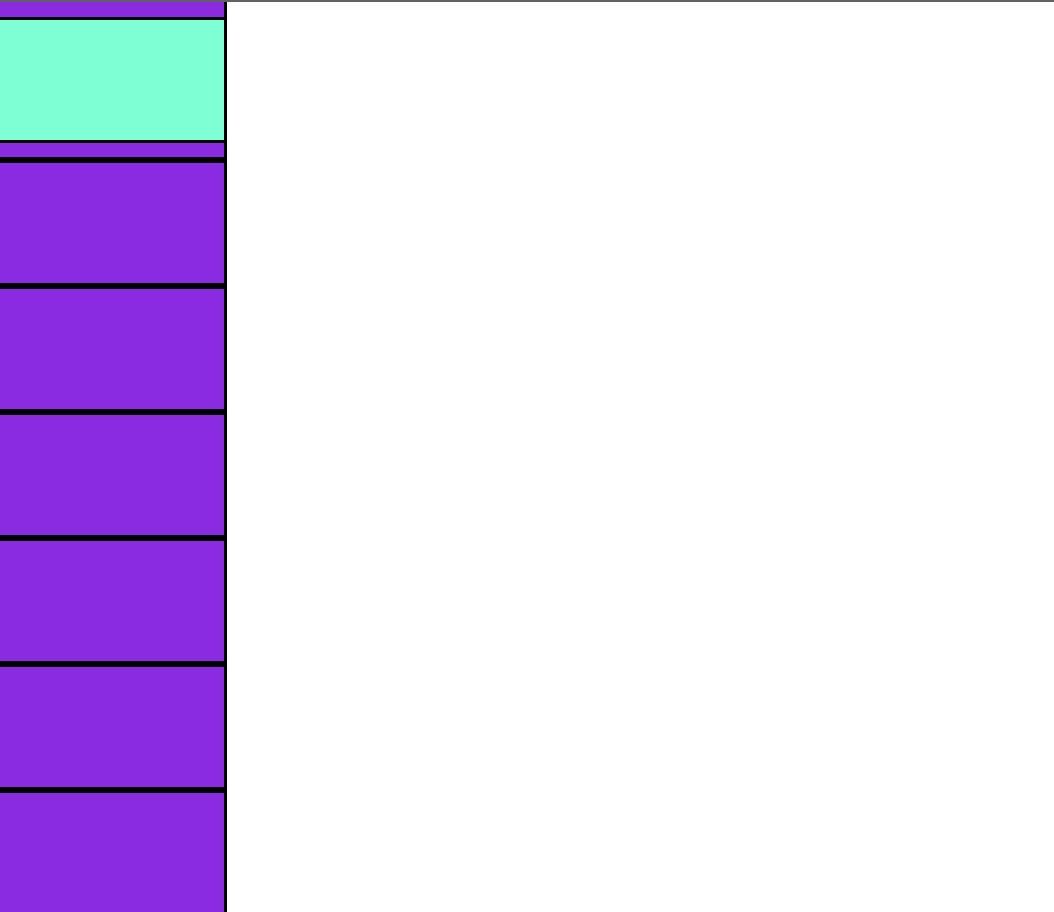
4. Sticky: An element with position: sticky; is positioned based on the user's scroll position. A sticky element toggles between relative and fixed, depending on the scroll position. It is positioned relative until a given offset position is met in the viewport - then it "sticks" in place (like position:fixed). See the below images for example.
    <div class="cn"></div>
    <div class="cn cn1"></div>
    <div class="cn"></div>
    <div class="cn"></div>
    <div class="cn"></div>
    <div class="cn"></div>
    <div class="cn"></div>
    <div class="cn"></div>
    <div class="cn"></div>
    <div class="cn"></div>


</body>
    height: 80px;
    width: 150px;
    background-color: blueviolet;
    border: 2px solid black;
}
.cn1{
    position: sticky;
    top: 10px;
    background-color: aquamarine;
}